


How to Update Chevy MyLink Software
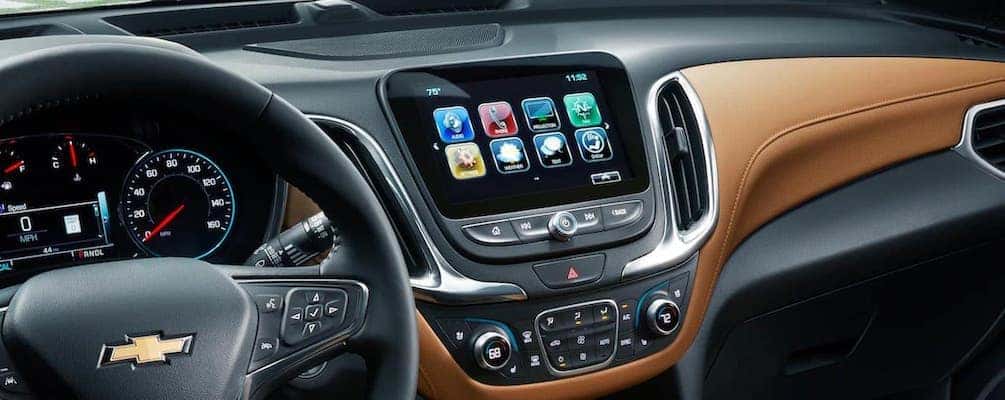
Your Chevrolet’s infotainment system makes it easier to manage music, phone calls, navigation, and other features while you’re on the road. If you drive an older Chevy equipped with MyLink, you might be wondering how to update its software or what to do when the touchscreen isn’t working quite right.
The answer depends on your vehicle’s model year and infotainment system. Chevy MyLink was used in previous generations of Chevrolet vehicles, while newer models feature updated Chevrolet infotainment systems, including Google built-in on compatible vehicles. The update process isn’t the same for every system, but the team at Sid Dillon service centers can help you understand your options.
What Is Chevy MyLink?
Chevrolet MyLink is the name used for several infotainment systems found in previous generations of Chevy cars, trucks, and SUVs. Depending on the vehicle, MyLink can bring together entertainment, phone connectivity, available navigation, and vehicle settings through a central touchscreen.
MyLink systems were offered in vehicles such as the Chevrolet Silverado, Equinox, Malibu, Traverse, and other models. However, the features and software capabilities vary depending on the model year, trim, and infotainment hardware.
Some MyLink systems support Apple CarPlay and Android Auto, while earlier versions may rely primarily on Bluetooth or other smartphone connections. Certain features also require compatible devices, subscriptions, or additional equipment.
If you’re unsure which system your vehicle has, consult your owner’s manual or infotainment guide. You can also learn more in our Chevy MyLink overview.
How to Update Chevy MyLink Software
Updating Chevy MyLink software isn’t necessarily as simple as turning on your vehicle. Some systems support over-the-air software updates, while others may need specialized equipment or dealership assistance.
Before trying to update your system, identify your vehicle’s model year and follow the instructions provided by Chevrolet for that specific infotainment system.
Step 1: Identify Your Infotainment System
Start by checking your vehicle’s owner’s manual or infotainment guide. This will help you determine whether you have a MyLink system, a newer Chevrolet Infotainment System, or another configuration.
The system type matters because software update availability and menu options vary between vehicles. Don’t assume that a procedure found online for a different Chevrolet model will work on yours.
Step 2: Check for Available Software Updates
If your Chevrolet supports checking for software updates through the infotainment screen, start by opening the Settings menu while the vehicle is safely parked.
Depending on the model, Chevrolet lists several possible menu paths:
- Settings > Updates > Check for Updates
- Settings > System > Vehicle Software > Updates
- Settings > Software Information > System Update
These are examples, not universal instructions. An older MyLink system may have different options or may not offer an owner-accessible software update menu at all.
If you cannot find an update option, check your vehicle’s documentation rather than attempting an unfamiliar reset or downloading unofficial software.
Step 3: Connect to the Internet if Required
Eligible Chevrolet vehicles may receive software updates through their built-in connectivity or a compatible Wi-Fi connection. Depending on the vehicle, you may be able to connect to a secure home Wi-Fi network or a mobile hotspot.
For supported systems, the necessary software may download in the background. However, connectivity requirements vary, and some features or services may depend on accepting Chevrolet’s connected vehicle terms.
If you’re using a personal hotspot, keep in mind that your mobile carrier’s data charges may apply.
Step 4: Follow the Installation Instructions
When an update is available and has finished downloading, an eligible vehicle may display a prompt asking you to install it. Follow the on-screen instructions carefully.
Many vehicle software updates require the vehicle to be parked and turned off before installation begins. The infotainment display may remain active during the process, and some systems may restart as the update is completed.
Don’t attempt to drive during an update that requires the vehicle to remain parked. Choose a safe location, follow the displayed instructions, and avoid interrupting the process.
The installation time depends on the update and vehicle. Make sure you have enough time to complete it before beginning.
Step 5: Contact a Chevrolet Service Center if Necessary
If your MyLink system doesn’t support over-the-air updates, repeatedly fails to install an update, or continues experiencing problems, a Chevrolet service technician may need to inspect the system.
Depending on the vehicle, dealership equipment may be required to diagnose software issues or install applicable updates.
If you’re dealing with a frozen screen, missing functions, repeated restarts, or other infotainment concerns, contact a participating Sid Dillon service center for help.
Do Chevy MyLink Updates Install Automatically?
Not necessarily. Some compatible systems can download software automatically when the required connectivity and vehicle conditions are available, but installation may still require driver approval.
Older MyLink systems may not support automatic software updates at all. That’s why it’s important to identify your system before assuming an update should happen whenever you start the vehicle.
Even if your Chevrolet supports over-the-air updates, updates may not always be available. Your vehicle could already have the applicable software version, or there may be no new update offered for its particular configuration.
What Features Does Chevy MyLink Offer?
Although MyLink is an older infotainment brand, many equipped vehicles still offer useful features for daily driving. The exact capabilities depend on the Chevrolet model and its original equipment.
- Bluetooth connectivity: Compatible systems can support hands-free phone calls and audio streaming.
- Apple CarPlay: Available on certain MyLink systems, allowing compatible iPhones to connect to supported vehicle displays.
- Android Auto: Offered on compatible systems for supported smartphone apps and functions.
- Navigation: Some MyLink-equipped vehicles include built-in navigation, while others offer navigation through compatible smartphone integration.
- Audio and entertainment: Depending on equipment, drivers may have access to radio, compatible audio sources, and available SiriusXM services.
- Vehicle settings: Certain systems allow drivers to adjust personalized settings through the infotainment screen.
- Wi-Fi connectivity: Some vehicles offer a built-in Wi-Fi hotspot through compatible connected services, with plan requirements depending on the vehicle and service.
Not every feature listed above is available on every MyLink system. If you’re shopping for a used Chevrolet, checking the specific vehicle’s equipment is the best way to know which functions are included.
What’s the Difference Between Chevy MyLink and Newer Chevrolet Infotainment Systems?
Chevrolet has continued updating its in-vehicle technology since the MyLink name was introduced. Newer infotainment platforms can offer larger screens, different menus, additional connected services, and integration with features such as Google built-in.
On compatible Chevrolet vehicles, Google built-in can provide access to Google Maps, supported voice assistance, and certain apps through the vehicle’s infotainment system. Some functions require an eligible service plan or trial and appropriate connectivity.
Smartphone compatibility also varies. While some Chevrolet systems support Apple CarPlay and Android Auto, certain newer models use a different approach to in-vehicle apps and may not offer smartphone projection.
If you’re comparing vehicles, don’t assume the presence of a touchscreen means every Chevrolet offers the same functions. Check the model year, trim, and specific vehicle equipment to see what is included.
For information about newer systems, visit Chevrolet’s official Google built-in technology page.
Chevy MyLink and Teen Driver Technology
If you have a newer driver in the family, you may also be interested in Chevrolet’s Teen Driver technology. Available on certain Chevrolet vehicles, Teen Driver helps encourage safer driving habits through configurable settings and an in-vehicle report card.
Depending on the vehicle, Teen Driver features may include:
- Speed warnings: Provides alerts when the vehicle exceeds a configured speed threshold.
- Audio volume limits: Allows a maximum entertainment-system volume to be set.
- Seat belt reminders: Compatible systems can mute audio until detected front-seat occupants fasten their seat belts.
- In-vehicle report card: Can display information such as distance driven, maximum speed, and certain driving events.
- Buckle to Drive: Available on certain vehicles to temporarily prevent shifting out of Park when the required seat belt isn’t fastened.
Teen Driver availability and settings vary by model year. On supported vehicles, the feature can typically be configured through the infotainment system using a PIN and a designated vehicle key.
Teen Driver is intended to support coaching and responsible driving habits, not replace driver attention, instruction, or safe driving practices.
For model-specific information, Chevrolet provides an official Teen Driver setup guide.
What If Your Chevy MyLink Screen Isn’t Working?
Sometimes a software update isn’t the only concern. If your MyLink touchscreen is frozen, responding slowly, or having trouble connecting to your phone, a few basic checks may help you understand what’s happening.
- Check your phone connection: Make sure Bluetooth or the required USB connection is working and the phone is compatible with the system.
- Check the infotainment settings: Look for available update information or connection settings, if your system supports them.
- Consult your owner’s manual: Some systems have manufacturer-approved restart or troubleshooting procedures.
- Confirm connectivity: If an update requires internet access, make sure the vehicle has the necessary connection.
- Have persistent problems diagnosed: Repeated freezing, black screens, or failed updates may require dealership service.
Avoid installing software from unofficial websites or attempting resets intended for other Chevrolet systems. Improper software or procedures can create additional problems.
Common Chevy MyLink Software Update Mistakes to Avoid
If you’re planning to update your vehicle’s infotainment system, there are a few mistakes worth avoiding.
- Assuming every MyLink system updates automatically: Software update capabilities differ by model and year.
- Following instructions for another vehicle: Different Chevrolet infotainment systems can use different menus and procedures.
- Interrupting an update: Follow the vehicle’s instructions and avoid turning systems on or off during an installation unless directed.
- Ignoring installation conditions: Some updates require the vehicle to be parked, powered off, or connected to a network.
- Downloading unofficial software: Only use software and procedures approved for your vehicle.
- Expecting an update to add unsupported features: Hardware limitations may prevent older systems from supporting newer infotainment functions.
Frequently Asked Questions About Chevy MyLink Software
Get Chevy MyLink and Infotainment Help at Sid Dillon
Keeping your Chevrolet’s infotainment system working properly can make everyday driving more convenient. Whether you have an older MyLink-equipped Chevy or a newer vehicle with updated connectivity features, knowing which system you have makes it easier to find the right software and support information.
Sid Dillon serves Chevrolet drivers throughout Omaha, Fremont, Blair, Lincoln, Crete, Wahoo, and surrounding Nebraska communities. Our participating service centers can assist with vehicle technology questions and help determine whether your Chevrolet needs software-related service.
If your infotainment screen isn’t working as expected, request a service appointment or contact our team. You can also explore our manufacturer information library for more helpful Chevrolet technology guides.
More Car Maintenance Tips
How to Repair Deep Scratches on a Car
Finding a scratch on your car is never fun, especially when it looks like more than a simple surface mark. Whether it happened in a parking lot, along a gravel road, or during your daily drive around Lincoln or Omaha, the first step is figuring out how deep the damage goes. Some scratches can be…
How Paintless Dent Repair Works
Paintless dent repair (PDR) is a vehicle repair technique that removes certain dents and dings without sanding, body filler, or repainting the damaged panel. Specialized tools allow technicians to carefully reshape the metal while preserving the vehicle’s existing paint finish. This method is commonly used for minor door dings, shallow dents, and hail damage…
What Does TPMS Mean?
TPMS stands for Tire Pressure Monitoring System, a vehicle safety feature that alerts drivers when one or more tires are significantly underinflated. The system helps drivers recognize low tire pressure before it contributes to excessive tire wear, reduced fuel efficiency, or tire failure. If you notice a tire-shaped warning light with an exclamation point…
